Otter for Sales: Turn Transcripts into Follow-Ups
Otter already does the hard part. Every word of your sales call is on the screen, timestamped, searchable, summarized. The problem isn't transcription, Otter nails that. The problem is what happens next: nothing. The transcript sits in a tab, the deal cools off, and the follow-up email you meant to write at 3pm is still unwritten at 9pm.
This is the exact workflow to turn an Otter transcript into a sent follow-up email, manually in under 10 minutes, or automated in under 60 seconds.
What Otter Gives You (And What It Doesn't)
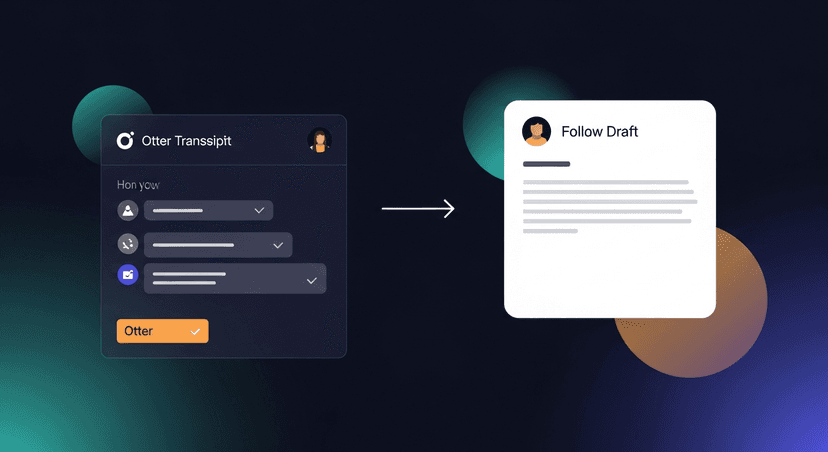
Otter is genuinely good at its job. It transcribes in real time, assigns speaker labels, generates an AI summary, and lets you highlight and comment inline. On a paid plan you get more meeting minutes, better speaker separation, and integrations with Zoom, Google Meet, and Teams.
What it doesn't do: draft a follow-up email. It doesn't know your deal context, your tone, or what the buyer specifically said they needed before signing. The AI summary Otter produces is designed for note-taking, not for sending to a prospect. Paste it directly into Gmail and it reads like an internal memo: because that's what it is.
This isn't a knock on Otter. Transcription and follow-up are two different jobs. Otter does the first one well. The second one is still on you.
What You Need Before You Start
- An Otter account, any plan works, including free (up to 300 minutes/month)
- The transcript in text form, copy it from Otter's web app, or export as
.txtor.docxvia More Options → Export - 10 minutes for the manual path, or a tool that accepts a pasted transcript if you're doing this at volume
- The prospect's email address, obvious, but get it open before you start drafting
How to Turn an Otter Transcript into a Follow-Up Email (5 Steps)
Step 1: Export or copy the transcript from Otter
In the Otter web app, open the conversation, click the three-dot menu (⋯) in the top right, and choose Export. Pick .txt for plain text or .docx if you want formatting. Alternatively, select all the transcript text on screen and copy it directly: that works fine for a one-off.
Don't copy the AI summary. Copy the full transcript. The summary loses the specific language your buyer used, and that language is what makes the follow-up feel real.
Step 2: Strip the noise: find the three signals that matter
A 45-minute discovery call transcript is 6,000–9,000 words. You don't need most of it. Scan for three things:
- Explicit next steps, anything the buyer or you committed to ("I'll send over the pricing by Thursday," "She said she'd loop in their IT lead")
- Buyer pain signals: the specific problems they mentioned in their own words ("we're losing deals because the handoff from SDR to AE takes too long")
- Open questions or objections, anything unresolved that the follow-up should address
Highlight or paste those into a separate doc. That's your raw material. Everything else is transcript padding.
If you don't want to manually parse a 6,000-word transcript and draft from those signals, ReplySequence does steps 2 and 3 from a pasted Otter transcript in 60 seconds, paste, review, send. No bot in the meeting required.
Step 3: Build the email from what you found
Use this structure:
Subject: [subject line, see Step 4]

Hi [First Name],

[One sentence: what you talked about + the specific problem they named.]

[One sentence: what you're doing next, tied to what they said they needed.]

Next step: [specific, time-bound ask: a call, a decision, a doc review]

[Your name]
Real example filled in:
Subject: SDR-to-AE handoff, next steps from today

Hi Marcus,

You mentioned the handoff gap is costing deals: I want to make sure we
address that directly before our next call.

I'm sending the workflow doc over by Thursday EOD as promised.

Next step: Can we get 20 minutes on the calendar for the 18th to walk
through it with your IT lead?

Jimmy
Notice: nothing from the transcript is copied verbatim. The buyer's language is paraphrased. The email is four sentences. That's intentional.
Step 4: Write the subject line last
Most reps write the subject line first and treat it like a formality. Write it last, after you know what the email actually says. The subject line should reference something specific from the call: not a generic "Following up."
Three formulas that work for common post-meeting scenarios:
After a demo:
[First Name], [feature they reacted to] + next step
→ Sarah: the CRM sync piece + next step
After discovery:
[Pain point they named], what we talked about
→ Onboarding drop-off, what we talked about
After a pricing conversation:
[Company] pricing, [one thing you're clarifying]
→ Northlake pricing, custom seat question
Generic subject lines ("Following up from our call", "Great speaking with you") get opened at roughly half the rate of specific ones, according to data from Yesware's email analytics research. The call gave you the specifics. Use them.
Step 5: Send within 24 hours: ideally within 2
This is the most research-backed part of the workflow. A study from the Harvard Business Review found that response rates to outbound follow-up decay sharply after 24 hours. Separate research from Velocify (now part of Velocify/Encompass) found that contacting a lead within an hour makes conversion 7x more likely than waiting even 2 hours.
For a post-meeting follow-up specifically, the window is longer than a cold outreach, but not much. Send within 2 hours if the meeting ended before 3pm. If it ran late in the day, send first thing the next morning before 9am. Anything past that and you're fighting recency bias going the wrong direction.
Set a calendar block or a phone alarm. Don't rely on memory.
The Subject Line Is Where Most Reps Leave Money
This deserves its own section because it's the step most people treat as an afterthought.
Three subject lines, ready to use:
Post-demo, one specific feature came up:
[First Name], [what they asked about] demo recap
→ Dana: the Slack integration demo recap
Post-discovery, clear pain point surfaced:
[Pain they named]: a few thoughts
→ Renewal churn: a few thoughts
Post-pricing call, one objection was unresolved:
[Company], on the [objection topic]
→ Fieldstone, on the implementation timeline
Every one of these is specific to what happened in the meeting. None of them could have been written before the call. That's the test: if you could have written the subject line cold, it's too generic.
Pitfalls That Kill the Follow-Up Before It Lands
Waiting more than 24 hours. The transcript doesn't expire, your window does. Waiting until "later this week" is how good meetings turn into dead deals. The 2-hour target exists for a reason.
Pasting transcript text directly into the email. Raw transcript language is choppy, repetitive, and full of filler. "Um, yeah, so basically what we're trying to do is..." is accurate transcription. It's a terrible opening sentence. Always paraphrase.
A vague close. "Let me know if you have any questions" is not a next step. "Can we get 20 minutes on the 18th?" is. Vague closes put the cognitive load on the buyer. Specific asks get replies.
Sending a template that ignores the actual call. If your follow-up email could have been sent before the meeting happened, the buyer notices. Even one specific detail from the transcript (a name they mentioned, a number they gave you) signals that you were actually listening.
If You're Running This Workflow More Than 3x a Week
Doing this once after a big deal is fine. Doing it after every call (discovery, demo, check-in, pricing, re-engagement) is a grind. The manual version takes 10 minutes if you're fast and focused. Most people aren't.
If Otter is already part of your stack, you're one step away from a faster path: paste the transcript into ReplySequence, and the draft comes back in 60 seconds with the buyer signals already extracted and the structure already built. You review it, tweak the subject line if needed, and send. The 14-day Pro trial is free, no credit card.
Otter handles the transcript. You handle the relationship. The 10 minutes in between is the part worth automating.
Related reading
How ReplySequence handles this
ReplySequence takes any meeting transcript, paste it in from Zoom, Teams, Meet, WebEx, Fireflies, Granola, or wherever, and drafts a context-rich follow-up email in about 8 seconds. You review it, make any edits, and approve. Deal intelligence builds automatically.