Free AI Sales Follow-Up Email Generator: How to Use One
You just finished a solid meeting, prospect was engaged, questions were good, timing lines up. Then you spend the next 40 minutes staring at a blank email trying to remember exactly what you said you'd send them.
A free AI sales follow-up email generator cuts the time from "meeting ended" to "follow-up sent" down to under 60 seconds. Paste your transcript, review the draft, send. Here's exactly how to do it, and when it actually earns its keep.
What an AI Follow-Up Email Generator Actually Does
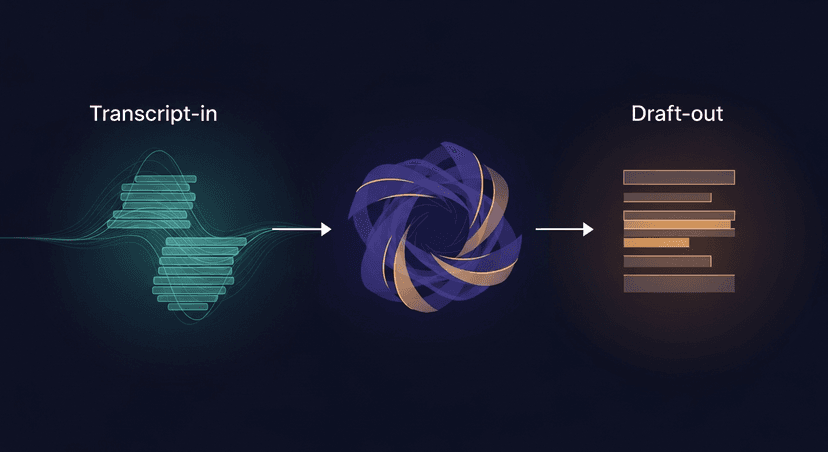
An AI follow-up email generator takes a meeting transcript as input and returns a structured follow-up email draft as output, subject line, body, action items, next step. That's the whole thing.
What it does not do: auto-send emails, prospect strangers, or replace your judgment. It is not an AI SDR. It drafts from a conversation that already happened, using the actual words and commitments from that call. You review, edit if needed, then send from your own inbox. Draft-first. Always.
The input is a transcript: not a calendar invite, not a CRM record. If you have text from the meeting, you can generate a follow-up from it.
What You Need Before You Start
Three things. That's it.
- A transcript from any source. Fireflies, Fathom, Otter, Granola, Zoom, Teams, Meet, or a Word doc you typed up yourself. No recorder bot required. No calendar connection. Just the text.
- The prospect's name and company. Even a rough transcript needs this for addressing and personalization.
- One clear next step agreed in the meeting. "Send pricing by Thursday" or "Schedule technical call with their IT lead": the generator will surface it, but you need to know what it is so you can verify it came through correctly.
That's the full pre-req list. BYOT: bring your own transcript.
Step-by-Step: From Transcript to Sent Email
Step 1: Pull your transcript.
Copy the transcript text from wherever it lives. A usable snippet looks like this:
[Rep]: We can have the proposal to you by Thursday: that'll include the two pricing tiers we discussed.
[Prospect]: Perfect. Copy Sarah on that email, she'll be the one reviewing it.
[Rep]: Will do. And the technical call, are you thinking next week?
[Prospect]: Yes, Tuesday or Wednesday works.
If your transcript has speaker labels like [Rep] and [Prospect], good. If it's a wall of unlabeled text, add them before you paste. More on why in the pitfalls section.
Step 2: Paste the transcript into the generator.
No reformatting needed. Raw transcript, paste, go. ReplySequence takes a pasted transcript from any source and returns a subject line and email body in about 60 seconds, steps 2 through 5 below happen automatically from that single paste.
Step 3: Review the generated subject line.
Generators default to subject lines. Check that it's specific, not generic. A good output:
Re: Pricing proposal + technical call, [Company]A bad output you'll want to edit:
Following up from our meetingThe good version references what was actually discussed. The bad version could have been written without attending the call at all. If the generator gives you the bad version, replace it with the good version before sending.
Step 4: Scan the body for accuracy.
The draft's opening line should ground the email immediately. Something like:
Hi [First Name], good talking through the pricing options today. Per what we agreed, I'm sending the proposal to you and Sarah by Thursday, covering both the Starter and Growth tiers.Read every action item in the body. Verify the names, dates, and deliverables match what you actually committed to. The transcript is the source of truth, if the draft gets something wrong, the transcript probably had ambiguous wording.
Step 5: Edit for voice if the draft sounds like GPT.
Generated drafts can sound stiff. If the opening line reads like a corporate memo, rewrite it in one sentence. The fix over time: voice-fingerprint. ReplySequence learns from your edits so each successive draft sounds more like you and less like a GPT default. After a handful of corrections, the drafts stop needing heavy edits.
Step 6: Send within 2 hours of the meeting.
HubSpot research puts follow-up response rates significantly higher when the email lands while the meeting is still fresh. After 24 hours, context fades, for you and for them. The whole point of a generator is to eliminate the delay. Don't let a fast draft sit in your outbox until tomorrow.
When a Generator Earns Its Keep (and When It Doesn't)
Good fit:
- Post-demo follow-ups with multiple action items, pricing, next steps, stakeholders to copy, technical questions to answer. The more moving parts, the more a structured draft helps.
- Multi-stakeholder meetings where the summary is genuinely complex. If four people were in the room and three of them have different next steps, a generator surfaces all of them in one pass.
- Back-to-back call days. Three demos in an afternoon means three follow-ups stacking up. Manual writing compounds; a generator keeps each one specific without draining an extra hour.
Poor fit:
- One-line "just checking in" emails. If the whole email is "Hey [First Name], wanted to see if you had a chance to review the deck," that takes 90 seconds to type. A generator adds no value there.
- Highly senior relationships where any templated structure would need a full rewrite anyway. If you're following up with a C-suite contact who expects a personally crafted note, a generated draft is a starting point that might cost you more time to edit than it saves.
A generator is a tool for speed and structure, not a replacement for judgment about when a personal touch matters more than efficiency.
Three Things That Break a Generated Follow-Up
1. Pasting a transcript with no speaker labels.
If the transcript is a wall of text with no [Rep] / [Prospect] labels, the generator can't tell who made which commitment. It may attribute the prospect's action items to you or vice versa. Fix this before you paste, even rough labels like [Me] and [Them] are enough.
2. Skipping the subject line review.
The subject line is the first thing the prospect reads. A generic one signals template before they've read a word. Every generator has a default subject line pattern, check it every time, not just the first time.
3. Sending without reading.
The draft is a starting point. Meeting transcripts contain filler, false starts, and ambiguous phrasing. The generator processes all of it. A quick read takes 60 seconds and catches the one sentence that got garbled. Draft-first is non-negotiable: the speed win comes from not writing from scratch, not from skipping the review entirely.
—-
If you want to try this without a credit card, ReplySequence's free tier gives you 10 drafts a month, paste any transcript, get a subject line and body back. See if it fits your flow before committing to anything.
How ReplySequence handles this
ReplySequence takes any meeting transcript, paste it in from Zoom, Teams, Meet, WebEx, Fireflies, Granola, or wherever, and drafts a context-rich follow-up email in about 8 seconds. You review it, make any edits, and approve. Deal intelligence builds automatically.