CRM Automation for Meeting Notes: Stop Logging by Hand
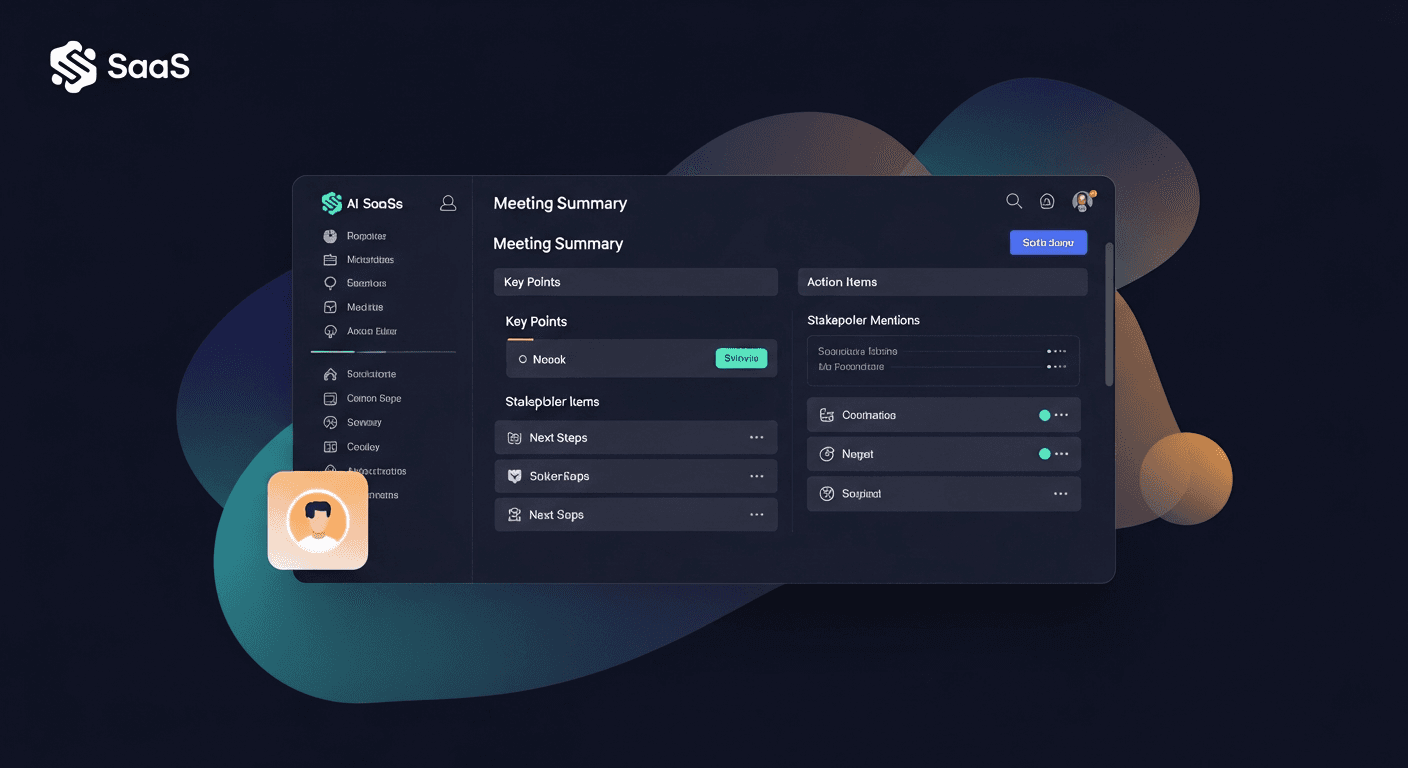
CRM automation for meeting notes means your call recap, action items, and follow-up sequence get logged to your CRM without you typing it all in by hand. The tech exists. The problem is that most reps still aren't using it right — and the piece that breaks down most often isn't the logging, it's the follow-up email that's supposed to go with it.
Here's how to fix both.
Why Manual CRM Data Entry Is Killing Your Pipeline
Salesforce's own research has found that sales reps spend roughly 65% of their time on non-selling activities. A huge chunk of that is CRM data entry — typing in call summaries, pasting in notes, logging next steps one field at a time after every single meeting.
That's not a minor inconvenience. It's structural drag on your pipeline.
Think about what happens in practice. You finish a discovery call at 2:45 PM. You've got another call at 3:00. Between them, you're supposed to:
- Write a summary of what was discussed
- Log pain points, objections, and next steps to the CRM contact record
- Draft and send a follow-up email recapping the meeting
- Set reminders for the sequence
Nobody does all four in 15 minutes. So one of them gets dropped. Usually it's the follow-up email — and that's the one that keeps the deal warm.
A study from the Harvard Business Review found that companies that respond to leads within an hour are 7x more likely to have a productive conversation than those who wait even 2 hours. The same urgency applies after a meeting: delay kills momentum.
What CRM Automation for Meeting Notes Actually Looks Like
Real CRM automation in this context has a few moving parts. Here's how it works in a well-configured stack:
Step 1: Transcription
Your recorder (Fireflies, Fathom, Otter, Granola, Zoom AI Companion, Teams, Google Meet) captures the call and produces a transcript. That part's mostly solved. Transcription tools have gotten genuinely good.
Step 2: Structured data extraction
From the transcript, an AI layer pulls out the structured data your CRM actually needs — company name, contact role, stated pain points, objections, stated budget or timeline, agreed next steps. This is where tools like Fireflies' AskFred, Fathom's summary cards, or Gong's call intelligence come in.
Step 3: CRM logging
That structured data gets pushed to the contact or deal record automatically. HubSpot, Salesforce, Pipedrive — they all have native integrations or Zapier hooks that can receive this data and populate the right fields.
Step 4: The follow-up
Here's where the stack almost universally breaks down. The transcript is transcribed. The CRM is logged. But the follow-up email to the prospect — the one that recaps the call, confirms next steps, and keeps the deal moving — still gets written manually. Or worse, it doesn't get sent at all.
ReplySequence fills that gap. Paste any transcript — from Fireflies, Fathom, Otter, or wherever — and get a branded follow-up sequence back in 60 seconds, ready to review and send from your own inbox.
The Three Personas Who Feel This Pain Most
The solo founder running their own sales
No ops team. No SDR. Every meeting is a context switch, and there's no one to delegate the CRM cleanup to. A solo founder doing 4-6 discovery calls a week is spending 2+ hours just on post-call admin — logging, emailing, following up on the follow-up. That's time that should go into building.
The AE at a 50-person company
Their company has Salesforce but not Gong. They have Fireflies but haven't wired it to anything downstream. Every call gets transcribed, and the transcript sits in Fireflies' dashboard forever while the AE manually copies key points into Salesforce and then opens Gmail to write the recap email from scratch. The automation exists in pieces. Nobody assembled the stack.
The recruiter or agency consultant
They're running 10-15 candidate or client screens a week. They're not a "sales team" by title, but the post-meeting workflow is identical: log to CRM (or ATS), send recap email, schedule next steps. Everything about this is manual. They're not the target audience for Gong or HubSpot Sales Hub Pro — the price and complexity don't match the use case.
All three have the same core problem: the meeting went great, then nothing happened fast enough.
How to Build the Stack Without Enterprise Budget
You don't need Gong ($100+/user/mo) or HubSpot Sales Hub Pro ($450+/mo seat minimums) to automate your post-meeting workflow. Here's a leaner version that works:
For transcription:
- Fireflies.ai (free tier works for most solo users)
- Fathom (generous free tier, strong Zoom integration)
- Otter.ai (good for multi-speaker calls)
- Granola (strong for Mac users who want a lightweight local option)
- Zoom AI Companion (if your org is already on Zoom Business)
For CRM logging:
- Most of the above have native HubSpot/Salesforce/Pipedrive integrations
- Zapier can bridge the gap if native integrations don't exist
- HubSpot's free CRM handles basic contact logging without a paid seat
For the follow-up sequence:
- If you're already on HubSpot Sales Hub Pro, their Sequences tool handles this — but you're paying enterprise prices
- If you're not, RS is built exactly for this use case: sequences without the enterprise CRM tax. Pro is $29/mo, includes voice-fingerprint, unlimited drafts, and CRM log. 14-day trial, no credit card required.
The key is wiring these pieces together. Transcript in, structured CRM data out, follow-up email drafted and sent — within 60 seconds of ending the call. That's the goal state.
The Voice Problem Nobody Talks About
Even when teams get the automation working, there's a subtler issue: the output sounds like AI wrote it.
Your CRM notes are full of GPT-speak. "The prospect expressed interest in streamlining their workflow." Your follow-up emails sound like a template from 2019. Prospects can smell it.
This is why voice-fingerprint matters. RS learns from your edits — the words you add, the phrases you swap out, the tone adjustments you make over time — so the drafts it produces start sounding like you, not like generic AI output. Same idea applies to CRM notes: structured data is useful, but the narrative summary that goes in the "notes" field should sound like it came from a human who was in the meeting.
What to Actually Do This Week
If your post-meeting stack is still manual, here's the shortest path to fixing it:
- Pick a transcription tool if you don't have one. Fathom's free tier is the easiest starting point for Zoom users.
- Enable the CRM integration in your recorder. Fireflies, Fathom, and Otter all have one-click HubSpot/Salesforce/Pipedrive sync. Turn it on.
- Stop writing follow-up emails from scratch. Paste the transcript somewhere that turns it into a sequence automatically. That's the last mile.
- Review before you send. Always. Draft-first is non-negotiable — you want to catch the one thing the AI missed before it hits your prospect's inbox.
The goal isn't full automation. It's getting 80% of the work done in the first 60 seconds so you can spend the remaining 20% actually personalizing.
The Bottom Line on CRM Automation for Meeting Notes
CRM automation for meeting notes is solvable with tools that already exist — transcription is mature, CRM integrations are table stakes. The gap that almost every stack leaves open is the follow-up email. That's the piece that keeps deals alive, and it's the piece that still gets written by hand or skipped entirely.
Fix the transcription-to-CRM pipe. Then fix the follow-up. In that order. The meeting data is already there — you just need to stop leaving it stranded.
—-
If you want to close the follow-up gap, start at replysequence.com. Free tier is 10 drafts/month, no credit card required. Pro trial runs 14 days free.
Get the weekly ReplySequence newsletter for more post-meeting follow-up tactics — subscribe at replysequence.com/newsletter.
How ReplySequence handles this
ReplySequence takes any meeting transcript — paste it in from Zoom, Teams, Meet, WebEx, Fireflies, Granola, or wherever — and drafts a context-rich follow-up email in about 8 seconds. You review it, make any edits, and approve. Deal intelligence builds automatically.